








Installing a graphics driver should be the most boring thing a computer does. The app sees the video card, sees the version of Windows, downloads the matching driver, installs it, and tells you it worked. That’s it. That’s the whole job.
The NVIDIA app has turned this into a recurring adventure. For me, it fails regularly, and when it isn’t failing, it’s often showing me a status screen that doesn’t match what’s actually going on. This week’s episode is my favorite so far.
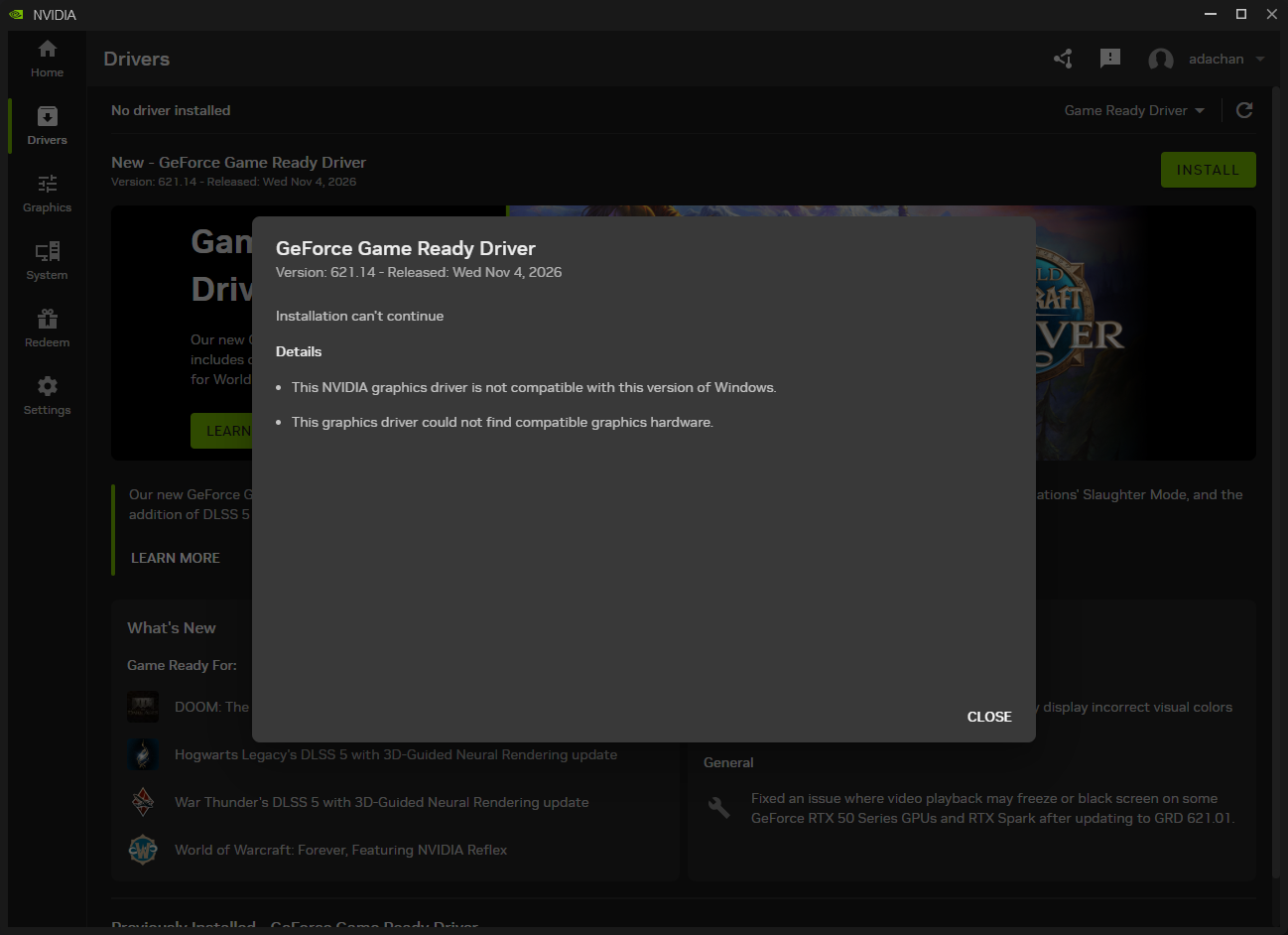
The app picked this driver. Then rejected it.
Look at the screen. Up top, the NVIDIA app announces “New – GeForce Game Ready Driver,” version 621.14, released Wednesday, November 4, 2026. There’s a big green INSTALL button. Behind it, a cheerful banner about new games and DLSS 5. This is the app’s own recommendation. Nobody went to a sketchy website. I clicked the button NVIDIA put in front of me.
And then: “Installation can’t continue.” Details: “This NVIDIA graphics driver is not compatible with this version of Windows.” And, as a bonus: “This graphics driver could not find compatible graphics hardware.”
So which is it? Wrong Windows? No hardware? Both? If the app can’t find NVIDIA hardware, why is the NVIDIA app offering me an NVIDIA driver for it? If my Windows isn’t supported, why did the app recommend this driver for my Windows? The app had all the information before it lit up that button. It just didn’t check until after I believed it.
“No driver installed.” Sure.
Then there’s the line in the top left: “No driver installed.” Maybe that’s true at that moment. Maybe it’s another one of those status screens I’ve learned not to trust. I genuinely can’t tell from the app, and that’s the problem. A driver tool has one dashboard that matters, the one that says what’s installed and whether the last install worked. If I can’t trust that screen, I can’t trust anything else the app tells me.
I’m not claiming to know what’s wrong under the hood. I’m saying the app doesn’t seem to know either, and it’s the one whose job it is to know.
What this should look like
- Check first, recommend second. Detect the card and the Windows version before offering a package. Don’t put an Install button on something you’re about to refuse.
- Tell the truth about status. Installed, not installed, failed, or rolled back. Pick the one that’s actually true.
- Give one error I can act on. Not two that contradict each other. Tell me what you detected, what you expected, and what to do next.
None of this is cutting-edge. NVIDIA can ship neural rendering and AI-generated frames, and it’s advertising both on the same screen that can’t figure out whether my computer has a graphics card. Installing a driver isn’t a feature. It’s the floor.
NVIDIA, you had one job. Please do it before the next Game Ready Driver is ready for a game I can’t play.